Joining a PowerPak Page
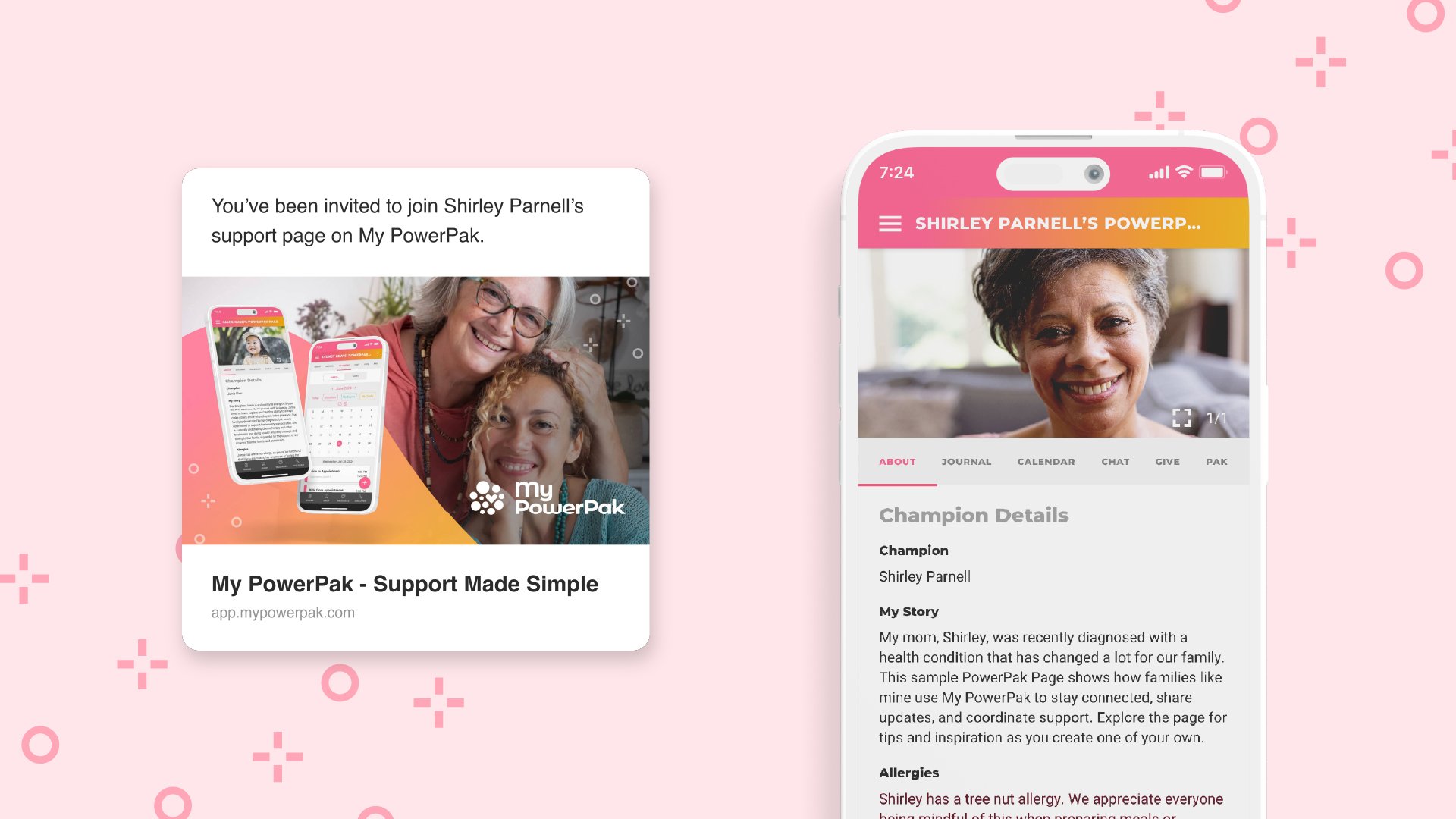
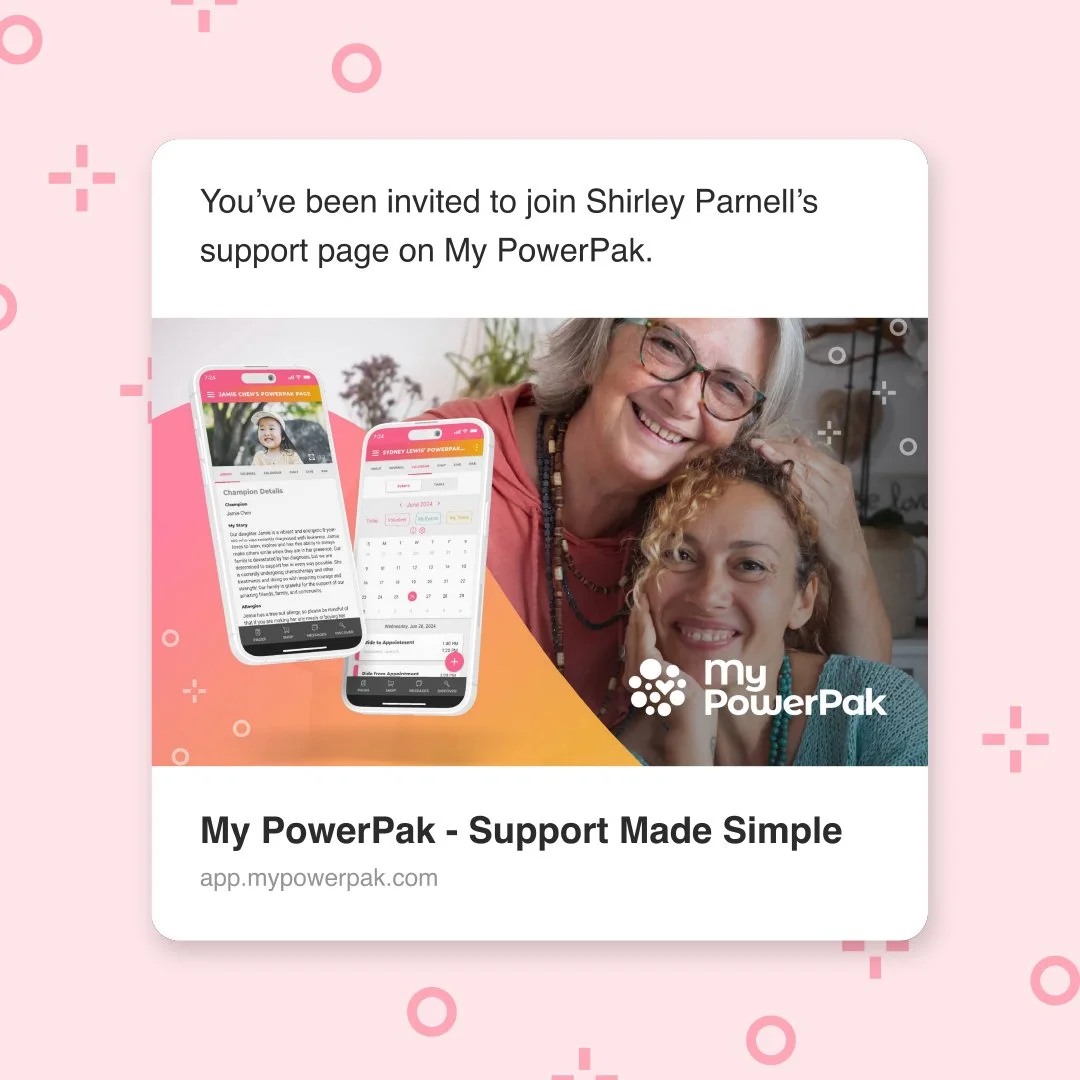
Before you can become a member of an existing PowerPak Page, you’ll need an invite link for the page you’re trying to join. Invite links can be generated by any member of a PowerPak Page. For privacy reasons, PowerPak Pages cannot be searched for on our platform. This helps prevent unwanted access and protects sensitive information, including page names and shared content.
Joining an Existing PowerPak Page
Existing Users
If you’re already a registered My PowerPak user, joining an existing PowerPak Page is simple. Just follow the invite link that was shared with you, whether it was sent directly or made accessible through another channel (such as social media).
New Users
When you follow an invite link for the first time, you’ll be guided through account creation before your invitation can be processed. After completing registration and onboarding, your invitation will automatically begin processing.
Page Privacy & Invite Links
Pages Set to Public
If the PowerPak Page you’re joining is set to Public, you’ll see a message in the app confirming that your invitation is being processed. Once complete, navigate to the Pages screen, where you should see a preview card for the page you just joined.
Pages Set to Private
If the PowerPak Page you’re joining is set to Private, your membership will need approval from a page admin before you can access the community. After following the invite link, you’ll see a message indicating that your membership is pending approval.
While approval is pending, a grayed-out preview card for the PowerPak Page will appear in the list on the Pages screen. Once a page admin approves your request, the preview card will become active and you’ll be able to access the page.
Troubleshooting
If you followed an invite link but weren’t admitted to the PowerPak Page as expected, it’s possible there was a hiccup during the invitation verification process. Try locating the original invite link and clicking or tapping it again to restart the process—you won’t need to register again.